How to Print Pinterest Boards as PDF: Complete Guide
Whether you're creating physical moodboards for design projects, preparing client presentations, printing wedding inspiration, or simply want a tangible copy of your curated collections, this comprehensive guide will show you exactly how to convert Pinterest boards to printable PDFs quickly and easily.
The easiest and most efficient way to print a Pinterest board as a PDF is using a dedicated browser extension like Pinboard.
See how it works
Step-by-Step Guide
1 Install the Pinboard Extension
First, you need to install the Pinboard extension for your browser:
2 Navigate to Your Pinterest Board
Open Pinterest.com in your browser and navigate to the board you want to print. This can be:
- Your own personal board
- A board you've saved from another user
- A board someone shared with you
- Any public Pinterest board
3 Activate the Pinboard Extension
Once you're on the Pinterest board page, simply click the Pinboard extension icon  in your browser's
toolbar. The extension will automatically detect all images on the current board.
in your browser's
toolbar. The extension will automatically detect all images on the current board.
4 Open the Export Interface
Click the Export to PDF / Figma / Canva button in the Pinboard extension. This will open a new tab with the Pinboard web interface where you can organize and print your images.
On the left side, you'll see all the images from your Pinterest board under "Available Images". On the right side, you'll see a default "Page 1" ready for you to start organizing.
5 Organize Your Images into Pages
Now you can create your perfect printable moodboard:
- Drag and drop images - Simply drag images from the left side into Page 1
- Rename your pages - Click on the page title to give it a meaningful name
- Add more pages - Click "Add Page" to create additional pages for different themes or categories
- Rearrange as needed - Move images between pages or change the order within a page using drag and drop
- Remove images - Hover over an image and click the red X button to move it back to Available Images
How image scaling works: Pinboard automatically scales your images to fit perfectly on each page. A single image will fill the entire page, while multiple images share the space evenly. No matter how many images you add, they always fit on one page - giving you full control over your layout.
6 Export as PDF
Once you've organized your images, you have two options to create your PDF:
- Export a single page: Click the PDF icon inside a specific page to export just that page
- Export all pages: Click the "Export all as PDF" button to create a PDF containing all your organized pages
7 Customize Your PDF Settings
Before exporting, you can adjust settings in the top bar:
- Page format: Choose your preferred paper size (A4, Letter, etc.)
- Include page name: Toggle whether to show the page title in the PDF
8 Print Your PDF
Once you have your PDF, print it like any other document using your computer's standard print function.
Organizing Your Moodboard Pages
The Pages feature gives you complete control over how your printed moodboard looks:
- Themed Pages: Create separate pages for colors, textures, typography, or any category you need
- Project Phases: Organize inspiration by project stage - research, concepts, final direction
- Client Presentations: Arrange pages in the order you want to present them
- Flexible Organization: Add as many pages as you like and reorganize anytime before exporting
Best Practices for Printing Pinterest Boards
- Choose the Right Paper: Use glossy or matte photo paper for best results when printing moodboards
- Consider Paper Size: A3 or larger formats work great for detailed moodboards with many images
- Check Image Quality: Higher resolution pins will print better than low-quality images
- Organize Before Printing: Arrange your Pinterest board sections logically before generating the PDF
- Test Print First: Do a test print on regular paper before using expensive photo paper
Why Print Pinterest Boards as PDF?
There are many reasons why you might want to print your Pinterest boards:
- Physical Moodboards: Create tangible moodboards for design studios, client meetings, or creative spaces
- Client Presentations: Present curated inspiration to clients in a professional, polished format
- Wedding Planning: Print wedding inspiration boards to share with vendors and family
- Interior Design: Create printed references for contractors, decorators, or furniture shopping
- Fashion Lookbooks: Compile style inspiration into printable lookbooks
- Teaching Materials: Print visual references for classroom or workshop use
- Offline Reference: Have a physical copy when you can't access the internet
- Archival Purposes: Create permanent records of your curated collections
Frequently Asked Questions
What paper size works best for printing Pinterest boards?
You can choose your preferred page format in the top bar before exporting. Standard A4 or Letter size works well for most uses. For larger prints, select a bigger format. Pinboard automatically scales images to fit your chosen page size.
Can I customize which images to print?
Yes! The Export Pinboards interface lets you organize your images into custom pages. You can drag and drop exactly the images you want, arrange them in any order, and create multiple themed pages. Only the images you add to pages will be printed.
Can I print private and secret Pinterest boards?
Yes! If you have access to view a private or secret board in your Pinterest account, you can print it just like any public board.
How many images can I include in one page?
You can add as many images as you like to each page. All images are automatically scaled to fit on one page - a single image fills the entire page, while multiple images share the space evenly. Create unlimited pages to organize your images however you prefer.
How does image scaling work?
Pinboard automatically scales your images to fit perfectly on each page. Here are some examples:
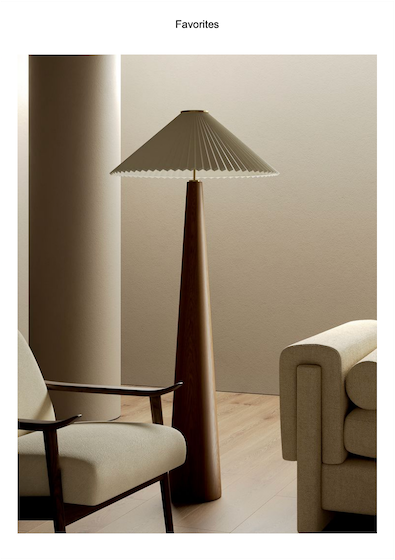
Single image: Fills the entire page
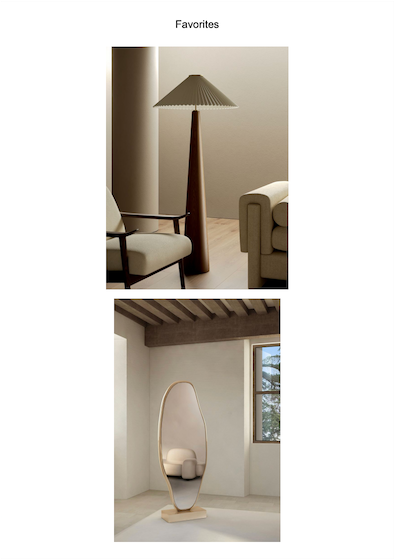
Multiple images: Space divided evenly
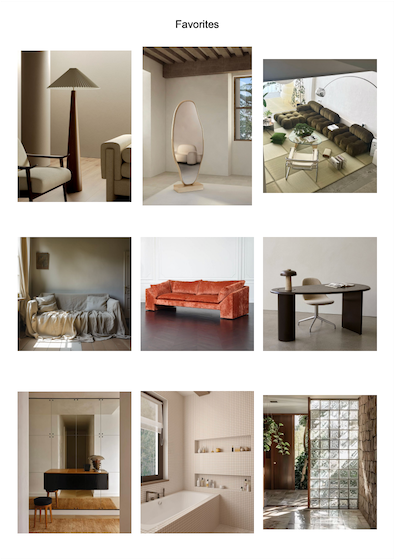
Many images: All fit on one page
This automatic scaling gives you complete control - add fewer images for larger, more prominent prints, or add many images for a detailed collage-style moodboard.
Conclusion
Printing Pinterest boards as PDFs doesn't have to be complicated. With the Pinboard browser extension, you can create beautiful, print-ready PDFs of any Pinterest board in just a few clicks.
Ready?
Get the Pinboard extension now and start printing your Pinterest boards as PDFs.
Need help installing? Follow our installation instructions
Looking for something else?
Check out our other guides: